 Streaming Learning Center Where Streaming Professionals Learn to Excel

Related Articles




This article is derived from a lesson in Streaming Media 101: Technical Onboarding for Streaming Media Professionals. If you’re looking for an efficient way to get up to speed on key streaming terms, technologies, workflows, and best practices, check out the course here.
Depending upon your encoding tool, you may have access to a checkbox or number box that controls something called IDR frames. What are these creatures and what is their significance? More importantly, what’s the optimal setting? Well, let’s just say that if you’re seeing anything like the random blockiness in the picture below when you drag the playhead back and forth in the video window, you’re probably using the wrong value.
 Read on and I’ll tell you why and identify the correct value.
What’s An IDR Frame?
Here’s the definition of IDR frame from Iain E. G. Richardson’s excellent H.264 and MPEG-4 Video Compression book.
An encoder sends an IDR (Instantaneous Decoder Refresh) coded picture (made up of I- or SI-slices) to clear the contents of the reference picture buffer. On receiving an IDR coded picture, the decoder marks all pictures in the reference buffer as ‘unused for reference’. All subsequent transmitted slices can be decoded without reference to any frame decoded prior to the IDR picture. The first picture in a coded video sequence is always an IDR picture.
For less-technical audiences, here’s another definition from a now-retired Harmonic White Paper entitled Advanced H.264 Encoding with Carbon Coder.
An IDR frame is a special type of I-frame in H.264. An IDR frame specifies that no frame after the IDR frame can reference any frame before it. This makes seeking the H.264 file easier and more responsive in the player.
There’s some confusion in the marketplace about the difference between I-frames and IDR frames. The short answer is that every IDR frame is an I-frame, but not vice versa, so there can be I-frames that aren’t IDR frames. When you’re producing for streaming, that’s when you can run into problems.
Simply stated, if all I-frames are not IDR frames, you may see the distortion shown in the figure above if you drag back and forth in the file.
What’s the right setting?
Well, in case you missed the not-so-subtle pitch for my book above, when you’re encoding for streaming, every I-frame should be an IDR-Frame.
Here’s what the relevant control looked like in Promedia Carbon (formerly Carbon Coder and no longer sold).
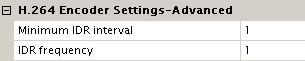
Here’s the recommendation from the aforementioned Rhozet white paper. “Unless the target playback device requires a different value, this setting should also be set to 1 (every I-frame is an IDR frame).” Using the settings shown in the screenshot, you would get a minimum IDR interval of 1 (so the first I-frame in the video is an IDR frame) and every I-frame thereafter would also be an IDR frame.
And here’s the I-frame related control from the now-retired Telestream Episode.
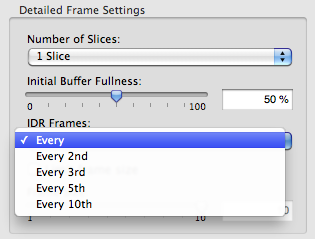 Here’s the recommendation from the Telestream Episode help file:
More distant IDR frames may allow more efficient compression but limit the ability of a player to move to arbitrary points in the video. In particular, QuickTime Player may show image artifacts when you scrub the timeline unless every I-frame is an IDR frame.
And here’s what the IDR control looks like in the now-retired Sorenson Squeeze 8.

Use the value shown and you’ll avoid the problems seen in the figure above and the first video.


IDR FRAMES are poosible in VTM