Checking exposure - waveforms and zebra stripes
- 8-10-2009
- Categorized in: Lighting for streaming
The most accurate technique for checking light is to use a standalone waveform monitor, a piece of test equipment that accepts an outbound signal from your camcorder and graphically displays the brightness of the signal. Many users don’t have this equipment, so let’s address some alternatives.
First, let’s set the stage a bit. When shooting for streaming, you should use manual exposure settings; otherwise, your camcorder may boost the gain when you’re not looking and introduce noise you could have avoided by adding light or adjusting your manual settings.
As you probably know, the two controls that impact how much light gets into the lens are aperture and shutter speed. Aperture is the diameter of the lens, which is controlled by an “iris” and measured in f-stops. Paradoxically, the smaller the f-stop the larger the opening and the more light gets through the lens.
Shutter speed controls how long the shutter stays open for each frame. The longer the shutter stays open, the more light gets to the video, but this also introduces the potential that motion will blur the frame. Faster shutter speeds reduce blurriness, but also limit the amount of light that gets into the video. To limit your variables, in most instance, you’ll want to set the shutter speed at around 60 (1/60th of a second), then adjust the aperture until the video is properly exposed.
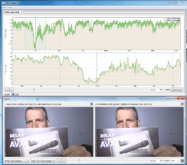
That said, what does properly exposed mean? Basically, you want your scene and subject lit as fully as possible without exceeding the brightness that your camera can capture. Figure 3 shows what I mean, but there’s a lot there, so let me explain.

Figure 4.A screen from Premiere Pro, showing a video (upper right), a video of that video (upper left) and the YC Waveform scope, which measures brightness in the scene.
The video on the upper right is Gary, a videographer buddy here in Galax. On the upper left is a video of the LCD viewfinder of the FX1 I used to shoot Gary. On the bottom is a YC Waveform scope in Premiere Pro, showing the brightness levels of the video on the upper right.
On the left of the YC Waveform is a vertical scale from roughly -20 to 120, in IRE, which stands for Institute of Radio Engineers. IRE is a measure of brightness, and the waveform in the scope represents the brightness of the video of Gary on the upper right. Note that while DV camcorders and computer monitors can display brightness in excess of 100 IRE, most TVs can’t.
If your video has regions above 100 IRE (or below 7.5 IRE, which is the floor for television sets), these regions get “crushed,” which means that the detail becomes lost. At one level, properly exposed means that your video is lit so that no region is over 100 or under 7.5.

Figure 5.A YC Waveform of a video that lacks "contrast" since it doesn't approach 100 IRE at the top.
It also means that you have a broad spread of exposure so that the brightest regions approach 100 IRE and the darkest regions approach 7.5. For example, in Figure 4, the brightest region of this video is around 88 IRE, so whites in the video would probably look a bit dull, or lacking in “contrast.” If you had a scope at your shoot, you could either boost lighting or increase the aperture by lowering the f-stop to let more light in. In post, you could fix this by adjusting brightness or contrast, but you’d always prefer to get the lighting right to start with.
If you don’t have a scope, how can your camera help you assess the brightness of your video? Go back to Figure 3 for a moment. You’ll notice in the YC Waveform scope that the brightness of the video goes up to about 110 IRE. If you look carefully at the video on the upper left, you’ll notice stripes in Gary’s shirt that you don’t see on the right. These are “zebra stripes” inserted by the camera to indicate regions that equal or exceed 100 IRE.
From this information, you could reasonably conclude that with the current lighting and f-stop (F1.7 as you can see on the upper left), Gary’s shirt is overexposed, so detail in the shirt will get “crushed” and lost. During the shoot, you could adjust to a higher f-stop (and reduce the aperture) to reduce the light on Gary’s shirt and eliminate the over-exposure. This progression is shown in Figure 5.

Figure 6. Using the Zebra stripes to direct f-stop adjustments.
With an f-stop of 1.7, Gary’s shirt is full of zebra stripes. At 2.4, many are gone, at 2.8 almost all are gone. One or two more stops, and exposure would be about optimum. ON the other hand, notice how Gary’s face keeps getting darker and darker as the f-stops increase, perhaps reaching the optimal level in the middle image and almost certainly too dark on the right.
This is why you should advise your subjects to wear clothing darker than their skin tones. When the shirt is too bright, you risk overexposing the shirt to get adequate exposure on the face. Over-exposing the shirt isn’t a big deal if you only see a little triangle, as in Figure 2 (and most folks wearing suits and ties), but doesn’t look good at all if the shirt looses all detail.